
How to integrate Swikly with Hostkit?
- 1. Connect your Swikly account to Hostkit
- 2. Set up security deposit amounts in Hostkit
- 3. Set up the deposit requests
- 4. How do I know if my deposit has been secured?
1. Connect your Swikly account to Hostkit
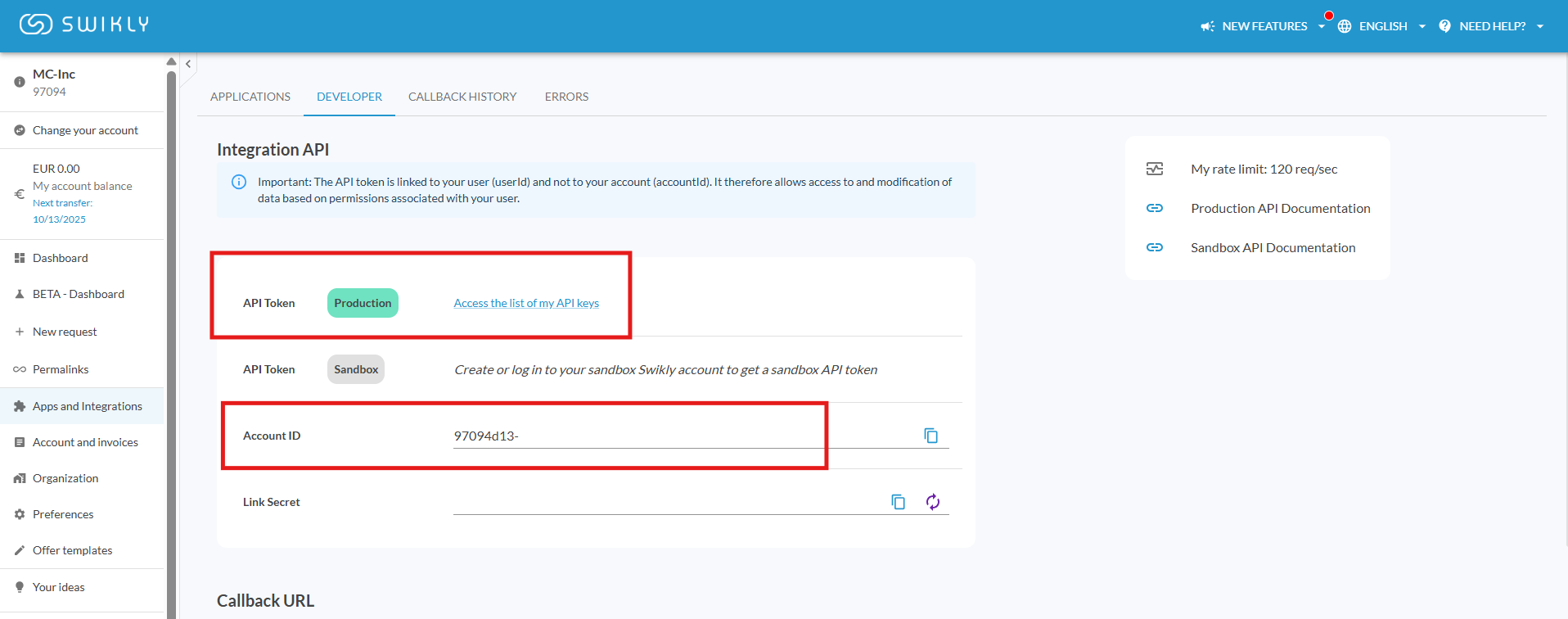
- From your Swikly account click on the left on « Applications & Integrations », at the top click on the "Developer" tab, you will find your account ID and your API key
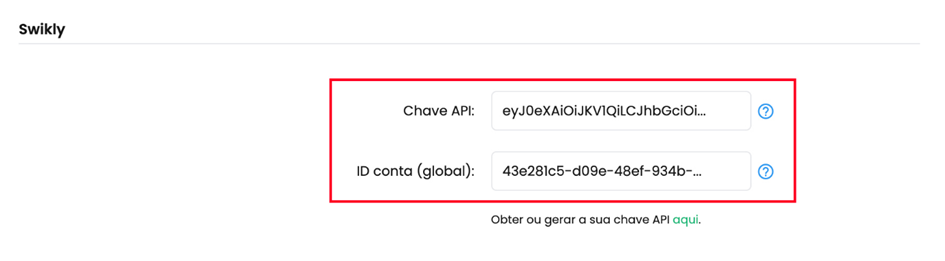
- From Hostkit, on the side menu click on « My account », scroll down to Swikly
- Paste your Swikly account ID and API key
2. Set up security deposit amounts in Hotskit
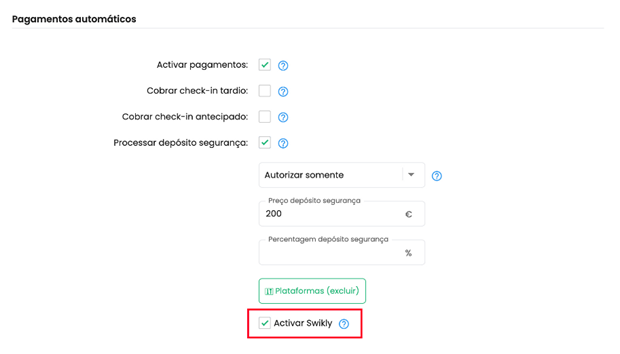
- In Hostkit, on the property page find the « Automated payments » section
- Set up the security deposit amount
3. Set up deposit requests
Since Hostkit does not include an automatic email sending tool, you can use the check-in link to allow your client to make the security deposit.
You can therefore use the OTA messaging channels or your PMS to send your check-in link.
4. How do I know if my deposit has been secured?
You can track the status of the security deposit:
- From the reservation details: go to the “Payment” tab
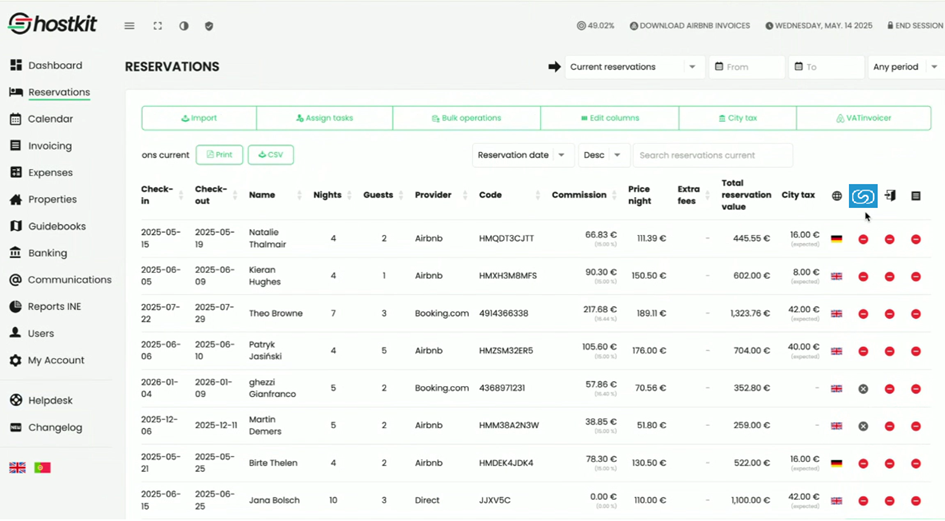
- From the reservations dashboard: you can add a Swikly column to view all deposits.
The icons indicate the following:- A red “no entry” symbol means the deposit has not been made
- A green check mark indicates the deposit has been successfully made
- A grey cross means that no deposit is required for this reservation
Congratulations! Your Hostkit integration with Swikly is now up and running!