
Here is an example of the email sent to your customer when you send a Swik request (deposit or no-show) from your Swikly account:
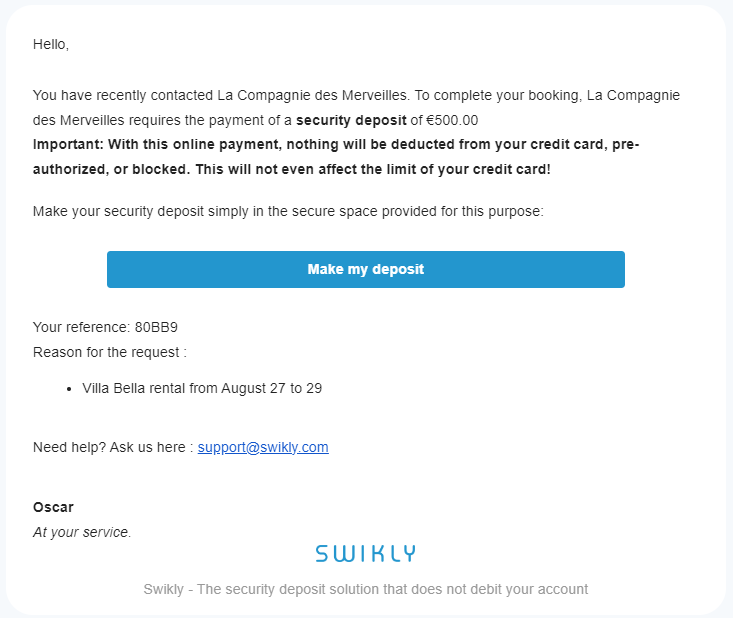
When your customers clicks on the "Make my deposit" button, a new page is displayed where they can validate their security deposit.
If you add your guest's phone number, we also send the request by SMS.
The following page is displayed:
First step : Personal information
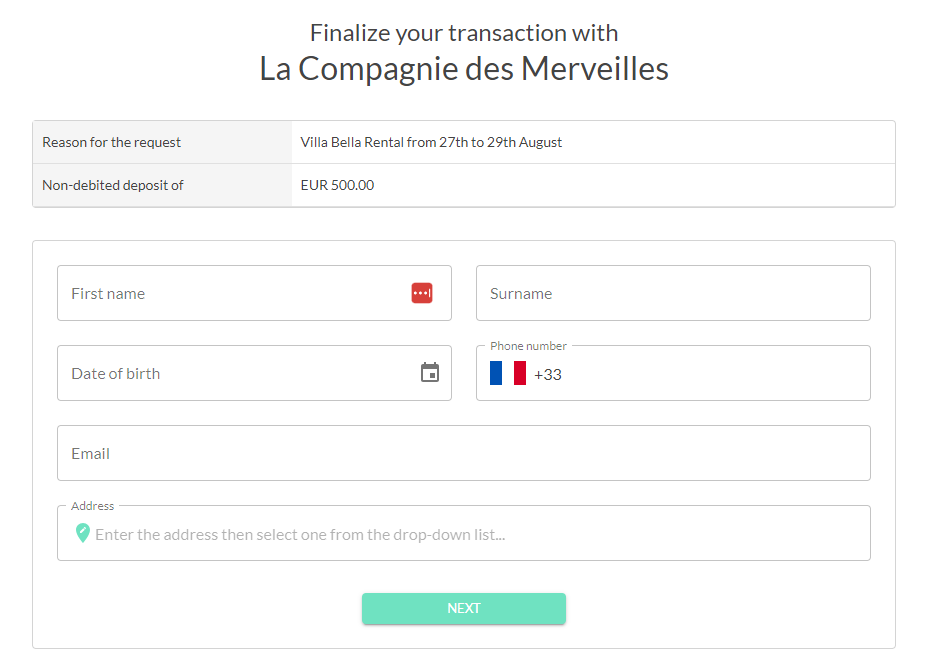
Second step : Credit card imprint
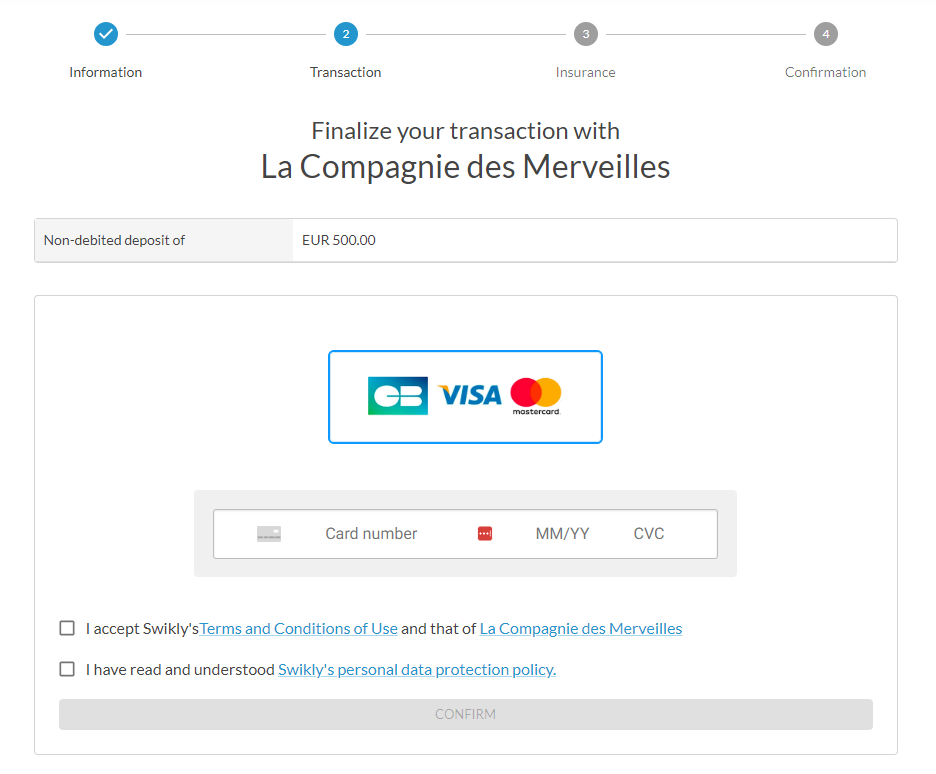
Add your logo to your Swikly Profile and it will appear on the security deposit form!
You can also include your Terms & Conditions in your Profile. This will enable these conditions to appear on the security deposit form, and your customers need to accept them to finalize their security deposit.
Once the Swik (deposit or no-show) has been securely submitted, both you and your client will receive confirmation emails (depending on your notification settings). Additionally, a new line will appear on your dashboard.