
How to Integrate Swikly with Hostaway?
1. Connect your Swikly account to Hostaway
2. Set up security deposit amounts in Swikly
3. Set up security deposit amounts in Hostaway
4. Configure the deposit request email
5. Configure the reminder email (optional)
6. How do I know if the security deposit has been secured?
1. Connect your Swikly account to Hostaway
Open Hostaway in one tab of your browser and Swikly in another, so you can easily switch between the two platforms.
- From your Hostaway account, click on "Marketplace" in the left-hand menu
- Find the Swikly application by scrolling down and click on the "Swikly" section
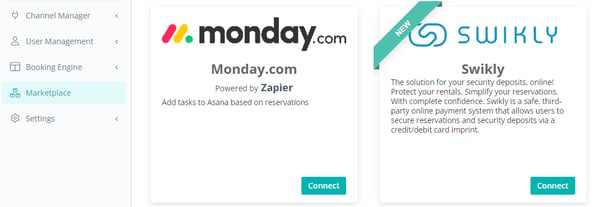
- Click on the "Connect" button and then on "Connect" again
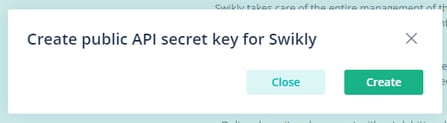
- Then click on "Create”
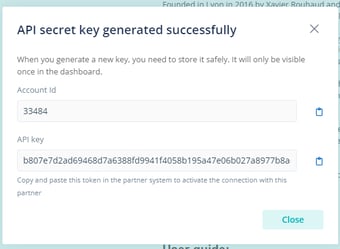
The credentials will show on your screen: your Hostaway Account Id and an the API Key.
The credentials must be pasted in your Swikly account:
- Paste your Account id into the field "Hostaway customer ID"
- Paste the API key into the field "Hostaway secret key"
- Click on "Confirm »
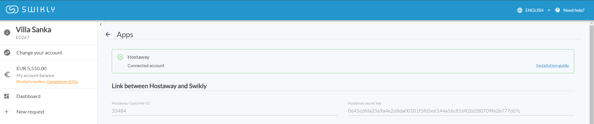
Your Swikly account is now connected to your Hostaway account!
2. Set up security deposit amounts in Swikly
- After connecting Hostaway to Swikly, the list of properties appears below:
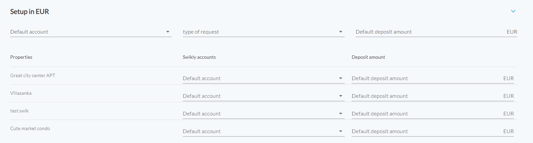
Select:
- The default Swikly account
- Type of request
- Default security deposit amount
These fields must be filled in for Swikly links to work properly.
These security deposit amounts are only taken into account if no deposit amount has been entered in Guesty. The amounts defined in your PMS are given priority.
3. Set up security deposit amounts in Hostaway
If your security deposit amounts have already been set up, you can move on to the custom field creation step.
It is necessary to configure your deposit amounts for each property in Hostaway.
- In the left-hand menu, click on "Listings"
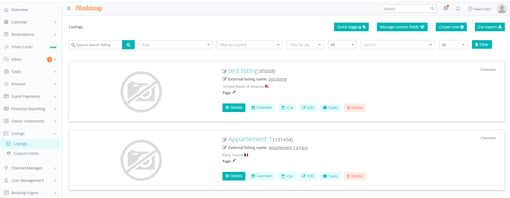
- Click on "Edit" on the property
- Click on the "Price & fees" tab
- Enter the deposit amount in the "Refundable damage deposit fee" field
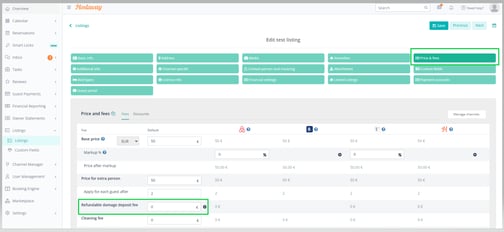
- Repeat this process for each property
Custom field creation - Mandatory
To enable us to update the status of the Swikly deposit, you'll need to create a 'Custom Field' that will be automatically updated by Swikly.
- Click on the "Reservations" menu, then on "Custom fields"
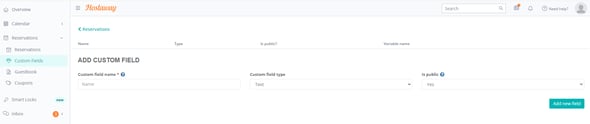
- Name the Custom field "Swikly deposit secured"
- Select the "Custom field type": TEXTAREA
- Select the "Is public" status: No
- Save by clicking on "Add new field"
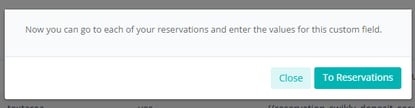
- Click on "Close
4. Configure the deposit request email
Once you've set up your security deposit amounts, it's time to configure the email template that will include the link directing your customer to the security deposit form.
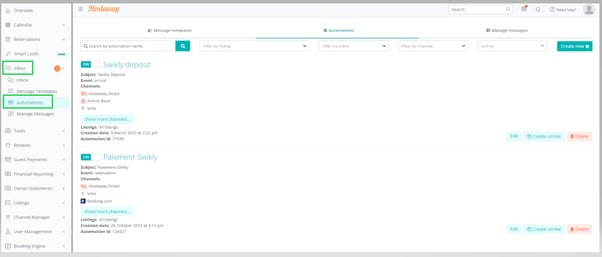
- In the left-hand menu, click on "Inbox" then "Automations", then on the "Automations" tab.
- Name your message
- Select the language
- Choose the subject and write the body of the email
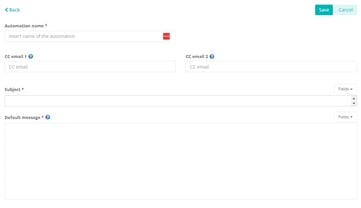
- Write the content of your email
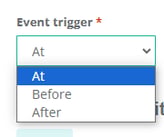
- Select "Event trigger": At guest arrival (Check-In)
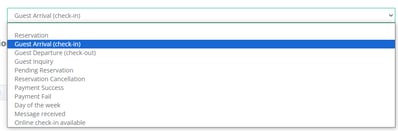
Delivery delay:
We recommend that you send the email 10 to 7 days before the guest's arrival.
For the body of the email:
Make sure to integrate the Swikly link (for example: In order to deposit your deposit, please click here: [SWIKLY LINK]).
You will find this link in the "Applications & Integrations" tab of your Swikly account.
- Select the conditions for email delivery
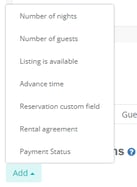
- Choose your booking channels

- Select your properties
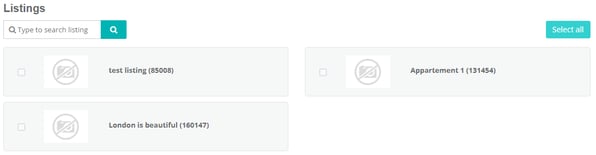
- Choose the modalities
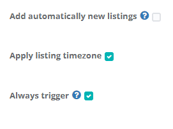
- Save by clicking on "Save”
5. Configure the reminder email (optional)
It is possible to schedule a reminder email for your customers who have not secured their deposit after your first request:
- Follow the previous steps to create the email
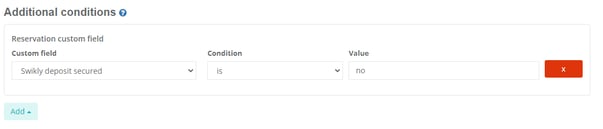
- Add an additional condition in the "Additional conditions" section:
- Condition: "Reservation custom field”
- Custom field: “Swikly deposit secured”
- Condition: is
- Value: no
6. How do I know if the security deposit has been secured?
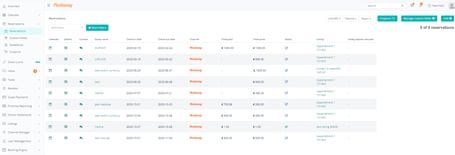
You can follow the status of the security deposit from the "Reservations" tab.
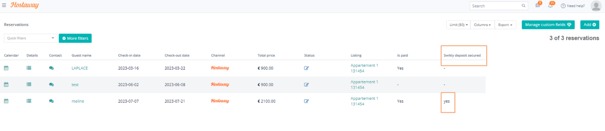
On this page, customize your view by adding the "Swikly deposit secured" column.
The "Swikly deposit secured” field shows "Yes" when the deposit is secured.
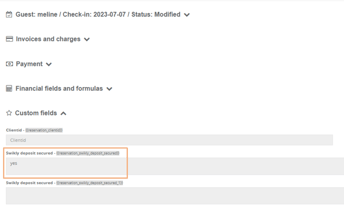
This information is also visible in the details of each reservation in the “Custom fields” section.
To confirm email delivery for each reservation, go to the "Inbox" menu and choose "Manage messages.
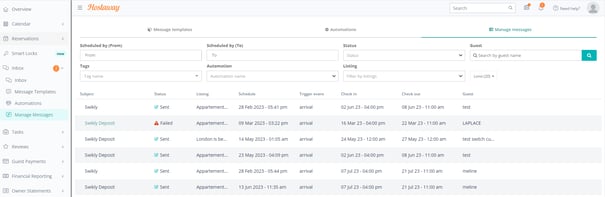
- From the "Inbox" menu, you can find all the conversations with your guest
Congratulations! Your Hostaway integration with Swikly is now up and running!