
How do I integrate Swikly with Hostify?
1. Connect Your Swikly Account to Hostify
2. Set up security deposit amounts in Swikly
3. Set up security deposits amounts in Hostify
4. Configure the deposit request email
5. Configure the reminder email (optional)
6. How will I know if the security deposit has been secured?
1. Connect Your Swikly Account to Hostify
Open your Hostify account in one tab, and your Swikly account in a second tab so that you can easily navigate between the two platforms.
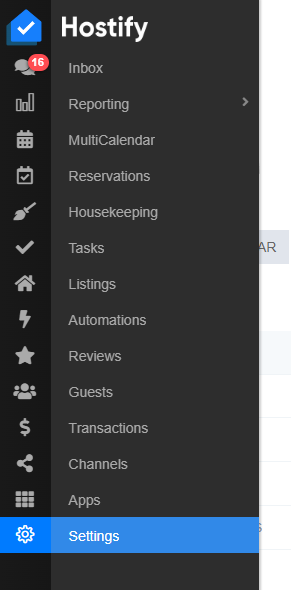
- On your Hostify account, go to "Settings":
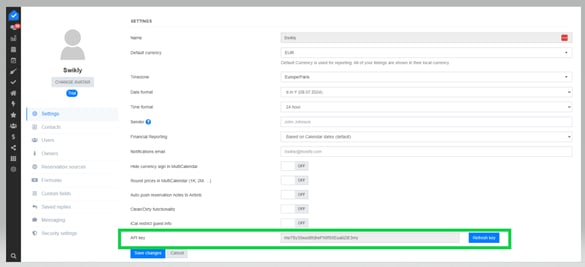
- Copy the API key from your profile:
- On your Swikly account, click on "Apps & Integrations", search for Hostify, and click on "Configure"
- In the "hostifyAPIKey" field, paste the copied API key:
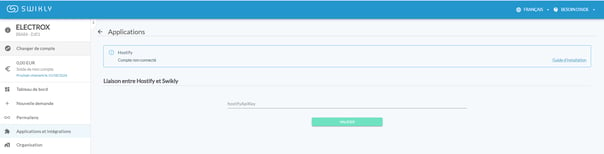
- Click on "Validate"

That's it, your Swikly account is connected to your Hostify account!
2. Set up security deposit amounts in Swikly
After connecting Hostify to Swikly, the list of properties appears.
Fill:
- The default Swikly account
- The type of request
- The default security deposit amount
It is imperative to fill in these fields to ensure the proper functioning of Swikly links.
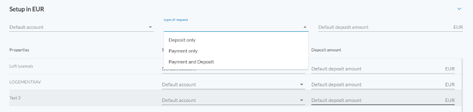
In case you are using managed accounts, don't forget to assign the corresponding account to each property via the drop-down menu.
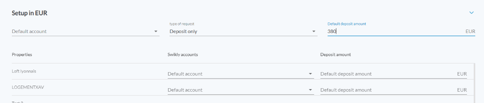
These security deposit amounts are only considered if no deposit amount is entered on Hostify. It is the amounts defined in your PMS that take precedence.
3. Set up security deposits amounts in Hostify
If your security deposit amounts have already been defined, you can proceed to the next step.
It is necessary to set up your security deposit amounts for each property on Hostify.
- On your Hostify account, go to "Listings":
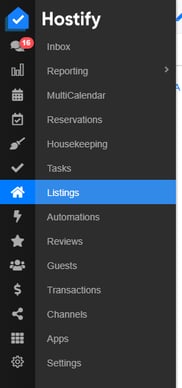
- Open a property's listing and click on "Settings":
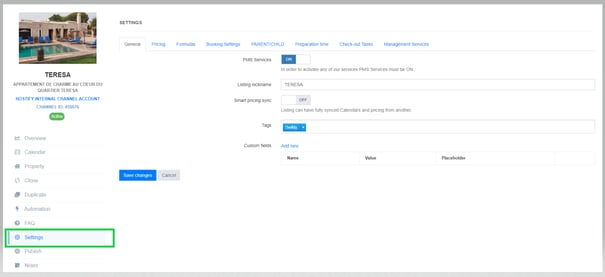
- Go to "Pricing"
- Fill in the desired security deposit amount for the property in the "Security Deposit" field:
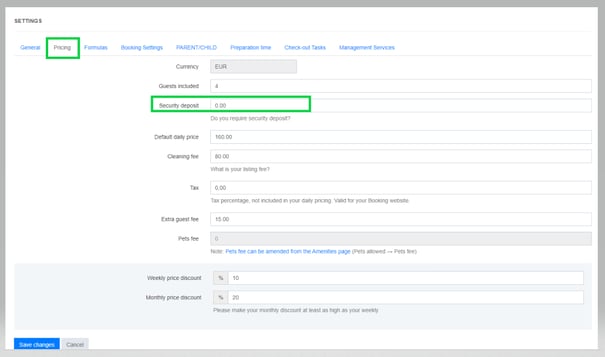
- Click on "Save changes"
- Repeat this for all your properties
4. Configure the deposit request email
After defining your deposit amounts, it is time to move on to the configuration of the email template that will contain the link directing your customer to the deposit deposit form.
- On your Hostify account, go to "Automations", then to "Automated Messages":
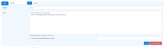
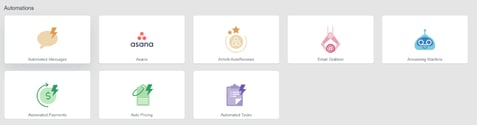
- Click on "Add new"
- Name the message
- Fill in the different sending parameters and filters such as:
- When the message will be sent
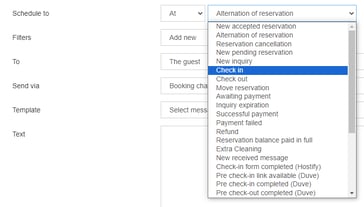


- The booking channels for which the message should be sent
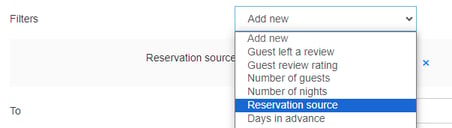
- The recipient of the message
- Write your security deposit request email
For the time of sending the message:
We recommend that you take place between 10 and 7 days before the guest's arrival
For the body part of the email:
Write the content of your email making sure to integrate the Swikly link (for example: In order to deposit your deposit, please click here: [SWIKLY LINK])
You will find this link in the "Applications & Integrations" tab of your Swikly account
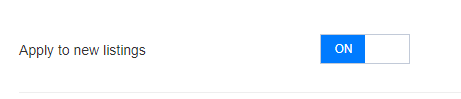
- Activate the new message:
- Click on "Save changes"
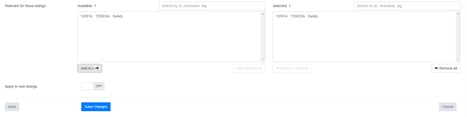
- Open the message again to select the properties you want the message to be sent for:
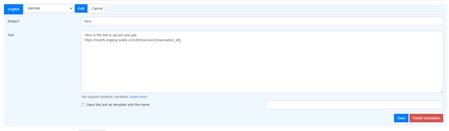
- Configure the message sent for your different communication languages:
5. Configure the reminder email (optional)
It is possible to schedule a reminder email for your customers who have not secured their deposit after your first request. This email is not automatic and will have to be sent manually.
- On your Hostify account, go to "Settings" and then "Saved replies":
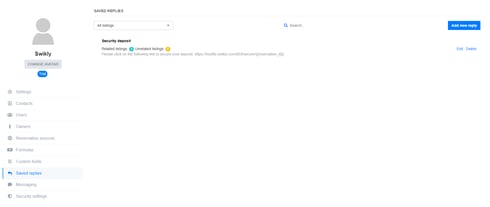
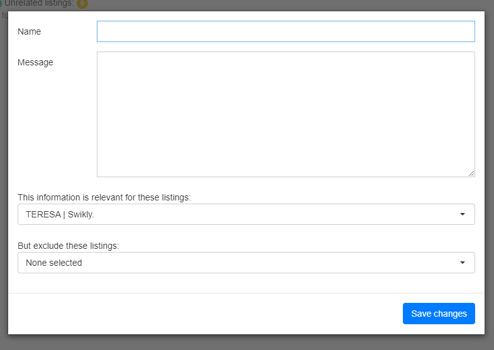
- Click on "Add new reply"
- Copy the email template created in point 4)
- Select for which properties your saved response will be available
- Click on "Save changes":
6. How will I know if the security deposit has been secured?
You can check the status of a deposit from your Hostify account:
- Go to "Reservations"
- Use the "Upcoming Reservations" view
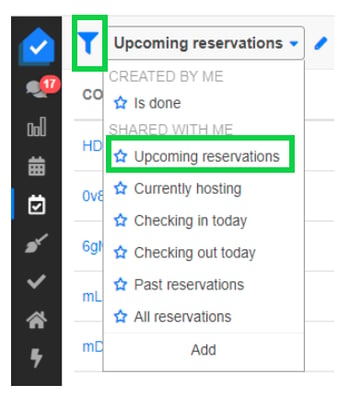
- Add columns to your view using the pen:
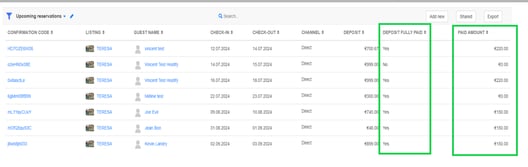
- "Deposit" and "Deposit Fully Paid" for the security deposit
- “Paid amount” for payments
- The status of Swikly deposits and payments is indicated in the assigned columns:
Congratulations! Your Hostify integration with Swikly is now up and running!